

URL: https://it.desy.de/services/soft/jetbrains/Pilot_Einstellungsgesuch_eng.html/@@siteview
Breadcrumb Navigation
JetBrains
Table of contents
Introduction
JetBrains is a manufacturer of professional development tools for software developers and managers of software projects.
The JetBrains programs are available for the operating systems Windows, Linux and macOS. The first tool developed by JetBrains and probably the best known is IntelliJ IDEA, originally a development environment for the Java programming language only.
Scope and use of floating licenses of JetBrains
DESY-IT has purchased 30 floating licenses of the "All Products Pack" for DESY. These licenses are managed via JetBrains’ online license server.
Each floating license is valid for a limited time and, if the connection to the license server remains active, is automatically renewed for the next time period upon expiration.
If the connection to the license server is lost when the time period expires, the user will receive a popup notification prompting them to save their project/work before the software closes. To continue using the program, restore the internet connection and restart the application.
Release floating license again
If you are not currently using the JetBrains program, please release the license so that other users can use it.
To release a floating license, simply close the JetBrains program. This will make the floating license available to other users again.
Content of "All Products Packs"
JetBrains programs can be installed and run on Windows, Linux and macOS. Here you can see an overview with all programs included in the "All Products Pack".
Click on "Download" to the right of the corresponding program name. You will be forwarded to the download page of the manufacturer. There you can select your operating system and download the desired installation file.
- AppCode: Download
- CLion: Download
- DataGrip: Download
- GoLand: Download
- IntelliJ IDEA Ultimate: Download
- PhpStorm: Download
- PyCharm Professional: Download
- ReSharper Ultimate (beinhaltet: ReSharper, ReSharper C++, dotTrace, dotCover and dotMemory): Download
- Rider: Download
- RubyMine: Download
-
WebStorm: Download
Note: These programs can also be downloaded and installed via the Toolbox App. For further information, please read the section "Install and manage JetBrains products using the Toolbox App".
If you are interested in further JetBrains products, you will find an overview of all tools offered by JetBrains under the link "https://www.jetbrains.com/products.html" .
Note: JetBrains also offers free programs, the so-called community editions, which you can download and use without a license. Activation with a floating license is only required for the Professional or Ultimate versions.
Install JetBrains products
JetBrains products can be installed separately, or you can use the "Toolbox App" management tool to install and update JetBrains programs.
The Toolbox App could prove to be a convenient and clear tool for using and managing multiple JetBrains products. Furthermore, you have an overview of the JetBrains projects you have created directly in the Toolbox App.
Install each product separately
First download the desired program from the manufacturer's site (download link see contents of the "All Products Pack") and install it. You do not need administrator rights on your operating system for the installation.
The product will be activated the first time you start the program. Updates must be started and installed individually for each JetBrains product from the respective JetBrains program.
Install and manage JetBrains products using the Toolbox App
Alternatively, you have the possibility to install the management tool "Toolbox App" and manage all JetBrains products comfortably with it.
In general, the Toolbox App allows you to manage the following:
- Install JetBrains programs
- Uninstalling JetBrains programs
- Installing Program Updates
- Administration of own JetBrains projects
Further information and installation instructions for the Toolbox App
Installation and use of the Toolbox App
The Toolbox App offers the user a comfortable administration of his JetBrains programs. Using the Toolbox App, further JetBrains programs can be installed subsequently, and already installed programs can be uninstalled or updated to new versions (program updates).
To install the Toolbox App on your computer, follow these steps:
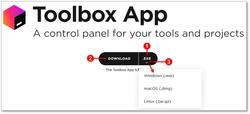
Note: If necessary, click on the small selection arrow (3) to open the drop-down menu and select the installation file for another operating system. The corresponding file extension will be displayed briefly and then the download window will open automatically.
- Download the Toolbox App from the JetBrains website https://www.jetbrains.com/toolbox/app. The Toolbox App is available for Windows, Linux and MacOS. The operating system is indicated by the file extension displayed. If the correct file extension is already displayed (1), click on the "Download" button (2) to download the installation file to your computer.

- Save the installation file on your hard drive and then install the Toolbox App on your computer.
- Start the Toolbox App and accept the privacy policy.
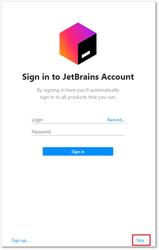
- A login window will then appear to log in with an existing JetBrains account. To use the floating license of DESY, you do not need a JetBrains account. Therefore, you can skip the login by clicking the "skip" button.

-
Now you see the main window of the Toolbox App with an overview of already installed programs and tools that you can install via the Toolbox App.
Here you can change the program settings and also check if updates for the installed tools are available. You can also switch to the Project Overview and open your projects directly from the Toolbox App.
Click on the small plus symbol to enlarge the screenshot and view the explanations of the individual window contents.
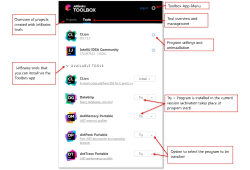
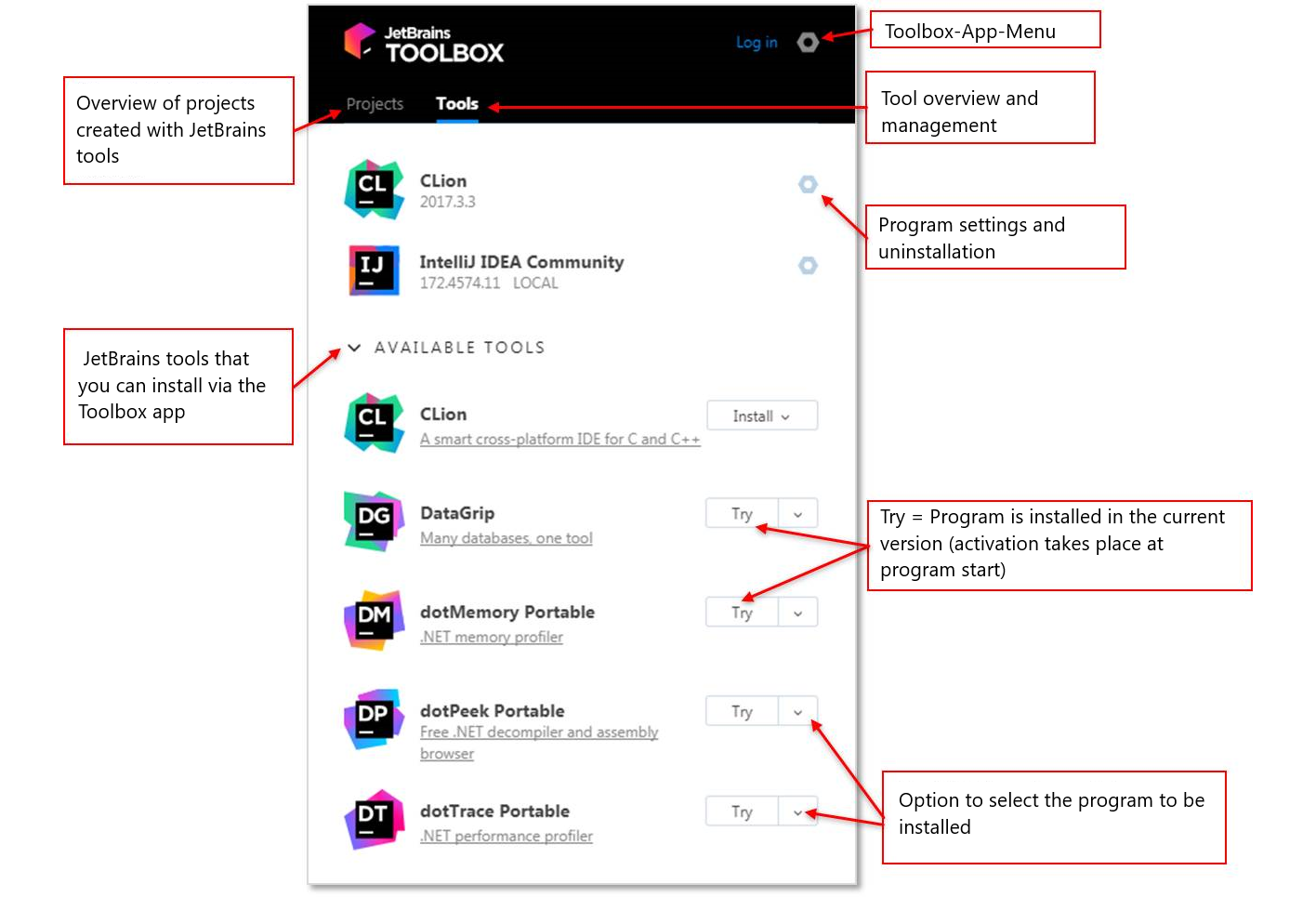
Note 1: The Toolbox App recognizes the JetBrains programs you have already installed and lists them.
Note 2: If you uninstall the Toolbox App, all previously installed JetBrains programs will not be affected. These programs may have to be uninstalled individually manually.
Activation of the Floating License
To use a JetBrains license, please follow these steps:
-
Install a JetBrains IDE (e.g., PyCharm, IntelliJ IDEA, or WebStorm) either via direct download or using the JetBrains Toolbox (refer to the instructions above).
- Open the official JetBrains website https://account.jetbrains.com/login.
- Register a new personal JetBrains account by clicking 'Create Account' and signing up with your DESY email address (important! must end with @desy.de).
-
After installation, a window with the application’s terms of use will open.
Please accept them and click "Continue". -
Open your JetBrains IDE or Toolbox and log in with your JetBrains account.
The login process may vary slightly depending on the IDE. Typically, you’ll find the login button in the top-right corner of the IDE window (e.g., click 'Trial') or under Help > Register.
Then, select "Activate Another Subscription".

-
If authentication was successful, JetBrains should display a message like "Authorization successful",
and you should see that your JetBrains license is provided through DESY.
If the licensing was not successful at this point, please open the JetBrains Toolbox and open the following link with a browser:
https://desy.jetbrains-ide-services.com/
On this web page please login and click on "Join DESY - Deutsches Elektronen-Synchrotron"


-
When updating existing installations, please ensure that the license server points to https://desy.jetbrains-ide-services.com.
Support and contact person for JetBrains at IT
If you have questions or problems with JetBrains applications, please contact the UCO (User Consulting Office)
