
URL: https://it.desy.de/services/calendar/outlook/Pilot_Abgabemeldung_eng.html/@@siteview
Breadcrumb Navigation
Outlook
|
Especially for persons who deal with managing multiple calendars in their daily work, Outlook can provide a clear overview of the calendars. Additionally, Outlook can integrate with Word and Excel, for example, for creating form letters.
However, the use of Microsoft Outlook is restricted to DESY Windows devices. For its use on Windows, in addition to Microsoft Outlook itself, the so-called Zimbra Connector for Outlook (ZCO) is required. Like Microsoft Office, this must be installed on Windows devices via the DSM Shop (software distribution). Please note that your device must be authorized for Office installation, as Microsoft Office is a licensed and paid software. If needed, please contact your group administration: Note: Outlook copies your data from the DESY mail server to your local device (creating a local copy of your data stored on the DESY mail server). The copying process (synchronization) requires a significant amount of time, especially for large inboxes and/or many calendar appointments. This is particularly noticeable during the initial synchronization or after longer periods of absence, such as vacations. Additionally, please note that some settings or permissions cannot be configured directly in Outlook but must be managed via the Zimbra web interface (https://mail.desy.de). For guidance on using the DESY mail server’s web interface, please refer to the relevant documentation here. |

Basics
How to make colored calender entries visible for different attendees
If certain entries in a calendar are always displayed e.g. in the same color due to conditional formatting, this does not mean that this conditional formatting is visible to other users of the calendar.
The conditional formatting is linked to the local PST (Personal STore) file. This is tied to the respective computer and cannot be transferred.
Alternatively, you can use the "tags" at Zimbra.
You can use these to categorize appointments when they are created and you can assign colors according to the day via individual settings.
The advantage is that the setting are saved on the server side, which is no longer bound locally like the conditional formatting.
This means that you can also log into other devices and expect the same color scheme.
The tags are then immediately visible for every participant, whereby the color settings must be configured individually.
One could agree on a common color scheme that each user sets for himself. Since Outlook is compatible with these tags, they should simply be adopted.
Zimbra integration into Outlook
If calendars, existing in Zimbra, are not or no longer available in Outlook, please proceed as follows:
- Open Outlook.
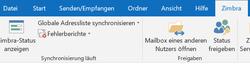
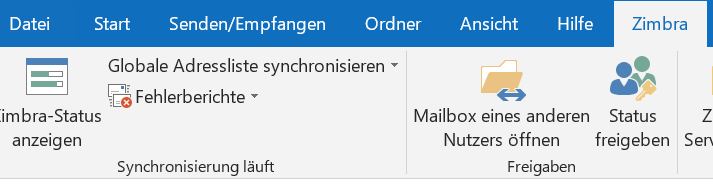
- Select the "Zimbra" tab in the menu bar.
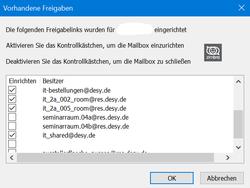
- Select "Share Status".
- Activate the desired calendars by ticking the control box and confirm with OK
- Close Outlook and wait for synchronization after restarting.