

URL: https://it.desy.de/services/e_mail/mail_clients/outlook/Pilot_Abgabemeldung_eng.html/@@siteview
Breadcrumb Navigation
Outlook on Windows
|
Especially for persons who deal with managing multiple calendars in their daily work, Outlook can provide a clear overview of the calendars. Additionally, Outlook can integrate with Word and Excel, for example, for creating form letters.
However, the use of Microsoft Outlook is restricted to DESY Windows devices. For its use on Windows, in addition to Microsoft Outlook itself, the so-called Zimbra Connector for Outlook (ZCO) is required. Like Microsoft Office, this must be installed on Windows devices via the DSM Shop (software distribution). Please note that your device must be authorized for Office installation, as Microsoft Office is a licensed and paid software. If needed, please contact your group administration: Note: Outlook copies your data from the DESY mail server to your local device (creating a local copy of your data stored on the DESY mail server). The copying process (synchronization) requires a significant amount of time, especially for large inboxes and/or many calendar appointments. This is particularly noticeable during the initial synchronization or after longer periods of absence, such as vacations. Additionally, please note that some settings or permissions cannot be configured directly in Outlook but must be managed via the Zimbra web interface (https://mail.desy.de). For guidance on using the DESY mail server’s web interface, please refer to the relevant documentation here. |

Base configuration
Important notice if you setup Outlook for the very first time:
Before you start following this guide, the 2-factor-authentication for Zimbra has to be working correctly first. During the activation of the 2-factor-authentication you will have generated a "token" which will generate 6-digits codes within your authentication-app (e.g Privacy Idea). You will need this token later during this guide.
This is not the same as the general token you also use to log into your DESY-account! You can find the guide for the correct token here:
https://it.desy.de/services/mfa/e_mail_programs/setting_up_an_apptoken/
Please setup this token first, and then continue with this guide.
Guide for setting up Outlook
This guideline has been created using Microsoft Outlook 2019.
- Install the "Zimbra Connector for MS Outlook 2019" package via DSM Software Shop.
- Install the "Microsoft Office 2019" package via DSM Software Shop.
- Restart your computer
- Open Outlook
- In the window that now opens (see Figure 1), the default Outlook profile is selected. Click on "OK" here.
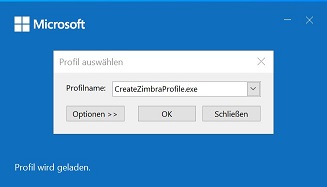
Figure 1
- Next a window opens (see Figure 2) with prepared connection data for the Mail. Please enter your account name in the "E-mail address" field and your corresponding password.
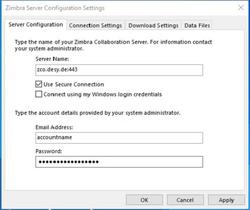
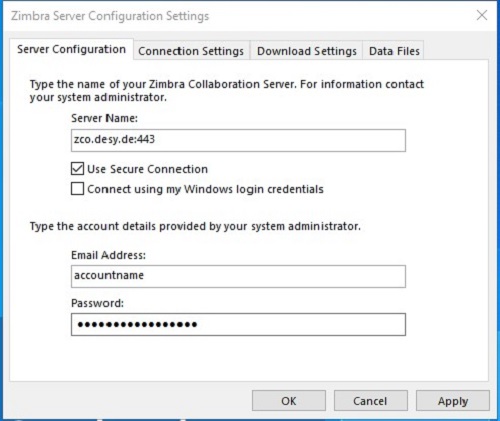
Figure 2
-
If the sign-in with your Mail-address and the correct password for you DESY-account was successful, you will be asked to enter a special "Code".
This is the 6-digit code which will be generated by the token you activated during the "2-factor-authentication"-setup for Zimbra within your token-app (e.g Privacy-Idea)
(Please see the note at the top of this guide!
If you did not yet complete the activation of your 2-factor-authentication, please see this guide:
https://it.desy.de/services/mfa/e_mail_programs/setting_up_an_apptoken/
and set it up first.
Depending on the size of your mailbox, the initial synchronization may take several hours. Please do not interrupt this process. During the synchronization, you can use the web client (https://mail.desy.de) without restrictions and access your mails and calendar using it.
Once the synchronization is complete, please remove the Outlook rule "Delete categories of e-mails" as follows:
|
After you complete this step, you can use Outlook in conjunction with the central email and calendar service.
FAQ
Below you will find a compilation of the most frequently asked questions when using Outlook.
How do I mount shared mail folders or calendars?
The inclusion of folders and calendars must first be configured in the Zimbra Web Client mail.desy.de. Under the following link you will find a short manual:
https://it.desy.de/dienste/e_mail/mail_programme_erweiterte_konfigurationen_informationen/allgemeine_informationen_fuer_alle_klienten/freigegebene_ordner_und_kalender_einbinden/index_ger.html
After the folder sharing has been set up in Zimbra and the Zimbra client is installed on the PC, the shares can be included in Outlook as follows (the shared data will be loaded automatically):


How do I send emails using another email address?
For certain purposes it is possible to send e-mails with a different e-mail address.
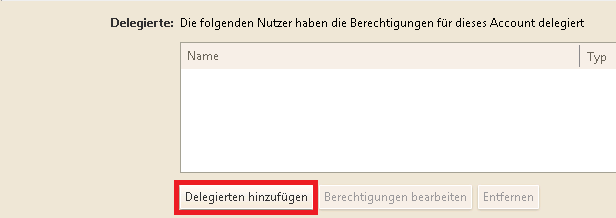
In order to be able to send from Outlook with another address, the delegation right "Send as" must first be granted by the desired address.
To do this, go to Settings -> Accounts -> Delegates with the desired e-mail address in the web client (see screenshot).
Please follow the steps below if you want to configure Outlook and have more than one email address.
In case you have an X.509 certificate for signing e-mails, please ensure that you use it only for the intended address. With the wrong address, a signed e-mail is seen as invalid by the recipient.

- open Outlook,
- choos the Zimbra tab and
- then select "Persona" (green cross)

- choose "Add..." in the opening dialog window.
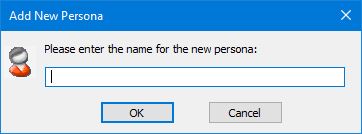
- choose an appropriate name, so you know later on which address is meant
- Then enter a name for the "From:" field in the "Persona Settings - new_selector_name" box of the dialog window.
- Select the desired e-mail address from the drop-down list and press "OK", then restart Outlook.
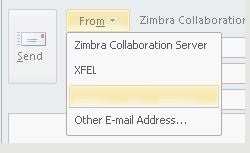
- if you are composing a new e-mail you now may click on the From-field and choose from which address you would like to send.
How do I create an out of office reply using Outlook?
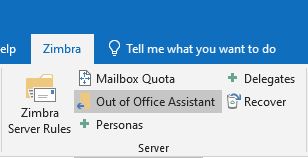
Open Outlook. Klick on the "Zimbra" tab. You will find the "Out of Office assistant", where you can edit your "Out of Office" message, adjust the displayed time period and add a seperate message for external recipients.
How to archive e-mails or appointments?
When you archive an email, you move the data from the email server to an archive file (PST). To do this, you just need to follow the instructions below:
|
My Zimbra Token no longer exists
If your Zimbra Token for Outlook is no longer available, you can generate a one-time code via mail.desy.de, which you can then use to log in to Outlook. You can find these one-time codes by logging in to mail.desy.de, going to Settings, then navigating to Accounts, and finally checking under Account Security. There you will see 10 free codes that you can regenerate at any time. Once a code has been used, it disappears from the list.


Do's & Dont's
There are a few things you should keep in mind while using Outlook to prevent problems. The following points provide an overview of recommended working methods or general recommendations by dealing with Outlook at DESY.
Do not send large attachments by e-mail or remove them from the mail server
|
Even if it is common to send large attachments such as image files, PDFs and similarvia mail, this is not always recommended. Many mail programs, including Outlook, rely on storing emails, appointments, etc. locally. Attachments to these consume a corresponding amount of local storage space. In the long run, this can lead to Outlook becoming slow and possibly causing major problems at some point due to the amount of data it has to hold. Therefore, if possible, make sure to work in a data-poor manner by considering the following recommendations:
|
Avoid parallel operation of Outlook
It is not recommended to actively use Outlook on multiple devices at the same time, as experience has shown that this can lead to various synchronization problems and data inconsistencies. Therefore, if possible, try to work in a way that does not require parallel operation of Outlook and make sure to close Outlook after each use.
Always save your archive files (PST) on your H: drive
| If you need to move data from your Inbox to a PST file, choose a folder on your H: drive as the location. The reason for this is that this is covered by the central data backup mechanisms. At the same time, this has the advantage that you have exclusive access rights to it and unauthorized third parties will not be able to access the file, and thus your mails and other personal data. |
Do not permanently include archive files (PST)
| If you have outsourced data from your Inbox to a PST file, please do not permanently include it under any circumstances. Open the file with Outlook only when you want to access e-mails or appointments in it and close it again when you have finished your work. The reason for this is that the central data backup only records the file if it is not open in Outlook overnight. Otherwise, no backup of the file can be performed. |
Solve Problems
If you experience any problems while using Outlook, please take a look at the following web page. Here we have summarized steps you can take to solve the most common problems you may encounter when using Outlook:
